
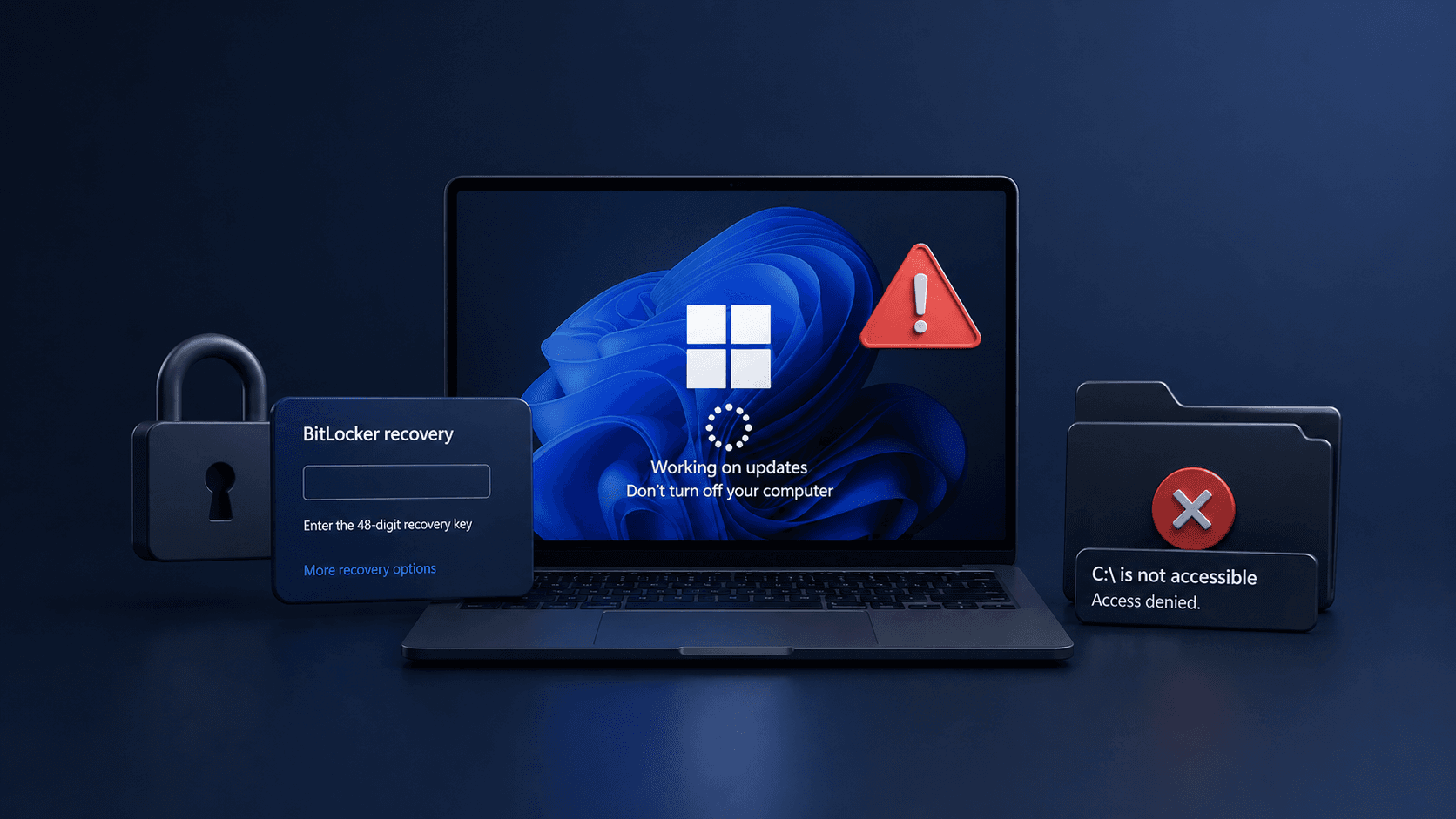
A single mandatory update shouldn't lock you out of your own computer. Yet that is exactly what thousands of Windows 11 users experienced after installing Microsoft's April 2026 quality update (KB5083769). Reports flooded in from PCWorld, Forbes, TechRadar, and Microsoft's own community forums describing BitLocker recovery prompts, login failures, and the dreaded "C:\ is not accessible – Access denied" error.
This isn't a minor inconvenience. For professionals and businesses, losing access to a workstation mid-week can mean lost revenue, missed deadlines, and a scramble to recover encrypted data. The April Patch Tuesday simultaneously addresses critical vulnerabilities across Microsoft, SAP, Adobe, and Fortinet — so skipping updates entirely isn't a responsible answer either.
In this guide, you will learn exactly who is affected, why the issue is happening, what to do before and after installing the update, and how IT administrators can protect their fleets. Whether you haven't updated yet or you're already locked out, there's a clear path forward.
Understanding the April 2026 Windows 11 Update Problem
What KB5083769 Is Doing Wrong
Microsoft's April quality update appears to interact badly with certain storage permission configurations and BitLocker (Microsoft's full-disk encryption feature). When the update applies policy changes, it can tighten access controls in ways that misfire — blocking even legitimate users from their own systems.
A similar class of failure appeared in a previous Windows 11 update that left Samsung laptops with inaccessible C: drives. This April's incident suggests the root cause pattern — security updates inadvertently colliding with OEM-specific encryption or driver configurations — has not been fully resolved.
Who Is Most at Risk
Not every Windows 11 system is affected equally. The problems are most common when:
- BitLocker was enabled automatically by an OEM or Microsoft account setup
- The BitLocker recovery key was never saved or is inaccessible
- The device uses OEM-specific security utilities or drivers
- The system has complex storage layouts: multiple partitions, separate data drives, or custom security policies
Table: Risk Profile by User Type
| User Type | BitLocker Enabled | OEM Tools Present | Risk Level |
|---|---|---|---|
| Home user, standard setup | Often auto-enabled | Possibly | Moderate |
| Power user, custom partitions | Yes | Varies | High |
| Corporate managed device | Yes (enforced) | Rarely | High |
| Clean install, no OEM tools | No | No | Low |
Symptoms: What a Lockout Actually Looks Like
On Startup After the Update
The most disruptive symptoms appear immediately on reboot. Affected users report:
- A BitLocker recovery key prompt appearing before Windows loads
- The login screen accepting credentials but refusing to proceed
- A complete inability to reach the Windows desktop
Once Inside the System (or Attempting To)
Some users get past the login screen only to encounter secondary failures:
C:\ is not accessible – Access deniedwhen opening File Explorer- Applications failing to launch because they cannot read system drive files
- File access failures on documents stored on the primary partition
Important: If you see a BitLocker recovery prompt, do not repeatedly enter wrong keys. After too many failed attempts, some configurations will trigger a full lockout that requires additional recovery steps.
What to Do Before You Install the April Update
Taking fifteen minutes now can save hours of recovery work later. If you have not yet installed KB5083769, follow these steps in order.
Step 1: Locate and Backup Your BitLocker Recovery Key
This is the single most important action you can take. Navigate to Settings → Privacy & Security → Device Encryption (or BitLocker Management on Pro editions). Confirm your recovery key is:
- Saved to your Microsoft account at account.microsoft.com
- Exported to a USB drive stored somewhere physically safe
- Printed and filed where you can access it without a working PC
Step 2: Create a System Restore Point or Full Backup
Before any major update on a critical machine, create a rollback option:
- Search for "Create a restore point" in the Start menu
- Select your system drive and click Create
- For complete protection, use imaging software to capture a full system snapshot
Step 3: Pause Updates if You Cannot Afford Downtime
Go to Settings → Windows Update → Advanced Options → Pause Updates and select a one- to two-week pause. This is a reasonable precaution for production machines while Microsoft investigates and issues fixes.
Table: Pre-Update Action Checklist
| Action | Where to Do It | Time Required |
|---|---|---|
| Backup BitLocker key | account.microsoft.com or Settings | 5 minutes |
| Create restore point | System Properties → System Protection | 5 minutes |
| Full system image backup | Backup software of your choice | 20–60 minutes |
| Pause updates | Settings → Windows Update | 2 minutes |
Recovery Steps If You Are Already Locked Out
Recovering from a BitLocker Recovery Prompt
If your machine is showing a BitLocker key request on boot, you need to retrieve the 48-digit recovery key. Check these locations:
- Microsoft account: account.microsoft.com → Devices → Info & support → BitLocker recovery key
- Azure AD / Entra ID portal for corporate or school-managed devices
- A printed copy or USB you saved during initial setup
Once you enter the correct key and regain access, immediately export the key to an additional safe location before rebooting again.
Recovering from Login Lockout or C:\ Access Denied
For systems where login fails entirely or the C: drive is inaccessible:
- Boot into Windows Recovery Environment by holding Shift while clicking Restart
- Navigate to Troubleshoot → Advanced Options → System Restore and roll back to a pre-update checkpoint
- If System Restore is unavailable, select Uninstall Updates from Advanced Options and remove the April quality update
- As a last resort, restore from a full system image or perform a repair install using Windows installation media
Pro Tip: Keep a bootable Windows 11 USB drive ready at all times. Creating one takes under ten minutes using the Media Creation Tool, and it becomes invaluable in exactly these situations.
Guidance for IT Administrators Managing Fleets
This incident carries a clear lesson for enterprise environments: quality updates carry the same disruption potential as feature updates, and they deserve the same staged rollout discipline.
Immediate Actions for IT Teams
- Audit BitLocker key escrow across all managed endpoints — confirm every key is retrievable from your directory service or management platform
- Identify high-risk systems with OEM-specific tools, complex partition layouts, or non-standard security policies
- Deploy to a pilot group first — specifically include BitLocker-enabled devices in that pilot before broad rollout
Table: IT Admin Response Framework
| Area | Recommended Action | Priority |
|---|---|---|
| Testing | Pilot on 5–10% of fleet including BitLocker devices | Immediate |
| Key Management | Verify all recovery keys are escrowed centrally | Immediate |
| User Communication | Warn staff about potential lockout symptoms | Before rollout |
| Helpdesk Readiness | Brief support teams on BitLocker recovery steps | Before rollout |
| Rollback Plan | Confirm restore points and imaging tools are ready | Before rollout |
Balancing Security and Stability
The April Patch Tuesday addresses serious vulnerabilities. Indefinite deferral is not a viable security posture. The right approach is phased deployment with documented rollback procedures — not avoidance.
Key Takeaways
- Back up your BitLocker recovery key before installing any major update — without it, recovery from a lockout is extremely difficult
- Create a system restore point as standard practice before Patch Tuesday installations
- Pause updates for one to two weeks on mission-critical machines while community reports and Microsoft's known-issues page stabilize
- IT administrators should use phased deployment and include BitLocker-enabled devices in pilot groups
- If locked out, use Windows Recovery Environment to uninstall the update or restore from a checkpoint before attempting more invasive repairs
- Skipping updates entirely is not safe — the goal is to update carefully and with preparation, not to avoid patching
Conclusion
The Windows 11 April 2026 update demonstrates that even routine quality patches can carry significant risk when they interact with encryption and storage configurations in unexpected ways. BitLocker lockouts and access-denied errors are serious disruptions, but they are recoverable — provided you have your recovery key and a rollback option ready.
The broader takeaway is one that security professionals have long advocated: patch management is a process, not a button click. Backing up recovery keys, creating restore points, and validating updates in pilot environments are not optional precautions. They are baseline hygiene.
As Microsoft works toward a fix, treat this as an opportunity to audit your backup and recovery readiness. Your future self — staring at a BitLocker prompt at 8 AM — will thank you.
Frequently Asked Questions
Q: How do I know if BitLocker is enabled on my Windows 11 device? A: Go to Settings → Privacy & Security → Device Encryption. If the toggle is on, BitLocker or device encryption is active. On Windows 11 Pro, you can also search for "Manage BitLocker" in the Start menu for more detailed status information.
Q: What if I never saved my BitLocker recovery key and I'm now locked out? A: Check account.microsoft.com under Devices — if you signed in with a Microsoft account when setting up the PC, the key may have been saved automatically. For corporate devices, contact your IT department to retrieve it from Azure AD. If neither option applies, data recovery without the key is extremely difficult and may not be possible.
Q: Should I install the April 2026 update at all, given these issues? A: Yes, but with preparation. The update fixes critical security vulnerabilities, so indefinite deferral creates its own risks. Back up your recovery key and create a restore point first, then consider waiting one to two weeks for Microsoft to publish a fix or additional guidance before installing.
Q: Can I uninstall the April update after installing it? A: Yes. Go to Settings → Windows Update → Update History → Uninstall Updates, or use the Windows Recovery Environment (Troubleshoot → Advanced Options → Uninstall Updates) if you cannot access the desktop. Uninstalling will remove the security patches as well, so re-evaluate and reinstall once the lockout issues are resolved.
Q: How can IT administrators prevent this from affecting their organization's devices? A: Use a phased deployment strategy — test the update on a small pilot group that includes BitLocker-enabled machines before organization-wide rollout. Ensure all BitLocker recovery keys are escrowed in Azure AD or your management platform, and brief helpdesk staff on the recovery steps before deployment begins.

Enjoyed this article?
Subscribe for more cybersecurity insights.